Copy é, è, ê, ë and É, È, Ê, Ë below. For é, Windows users with a numeric keypad can use Alt + 0233. On a Mac with the ABC layout, press Option + E, release, then e.
Click an accented E to copy it
Choose a letter, then paste it into your text.
Manual copy: é è ê ë É È Ê Ë
Choose your method: Windows Alt codes · Mac · Word · Google Docs · iPhone/iPad · Android. No numeric keypad? Use Character Map or Word’s built-in shortcuts.
Quick reference: accented E letters
| Accent | Lowercase | Uppercase | Example |
|---|---|---|---|
| Acute | é | É | café |
| Grave | è | È | très |
| Circumflex | ê | Ê | fête |
| Diaeresis (two dots) | ë | Ë | Noël |
Choose the letter required by the word’s spelling. The marks are part of the text, so copying é when you need è changes what you have written. For a complete sentence with several accents, use the French keyboard.
Copy and paste E with an accent
- Click the button for the lowercase or uppercase letter you need.
- Wait for the Copied message.
- Return to your document and paste with Ctrl + V on Windows or Command + V on Mac. On a phone, touch and hold the insertion point and choose Paste.
If automatic copying is blocked, select a letter from the manual copy line and use your device’s Copy command. The practice field above lets you check which character you copied before returning to your document.
Type accented E on Windows with Alt codes
This method works in many Windows desktop apps with a numeric keypad. Use the number pad rather than the number row above the letters, and include the leading zero.
| Letter | Hold Alt and type | Capital | Hold Alt and type |
|---|---|---|---|
| é | 0233 | É | 0201 |
| è | 0232 | È | 0200 |
| ê | 0234 | Ê | 0202 |
| ë | 0235 | Ë | 0203 |
- Click where the accented letter should appear.
- Turn on Num Lock if your keypad requires it.
- Hold Alt and enter the four digits on the numeric keypad. For example, enter 0232 for è.
- Release Alt.
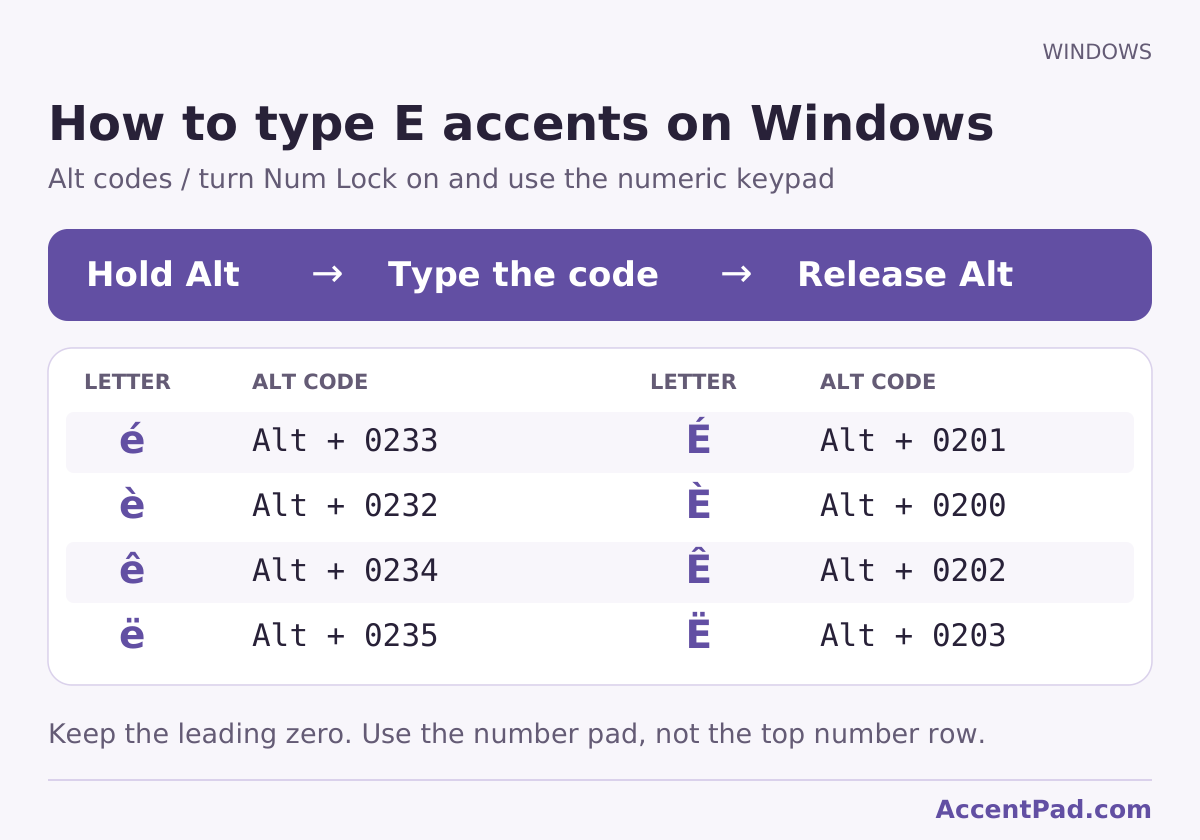
The codes are listed in Microsoft’s international-character reference. App behavior and system settings can vary. If your laptop has no numeric keypad, use Character Map, Word’s accent shortcuts, or the copy buttons instead.
Use Windows Character Map without a numeric keypad
Character Map lets you choose a letter visually and paste it into another app. It is useful when an Alt code is inconvenient or produces the wrong result.
- Open Start, search for Character Map, and open it.
- Choose a text font such as Arial.
- Find the required letter, such as é, in the character grid.
- Click the letter, choose Select, then Copy.
- Return to your document and paste.
Make sure you choose the intended case: é and É are separate entries. If the font does not show the letter, select another font. See Microsoft’s Character Map guidance.
Type E with an accent on Mac
Hold E to open the accent menu
In a supported Mac app, hold the E key until the accent menu appears. Click the letter you want, or press its displayed number. Use Shift + E for uppercase variants. The menu and available characters can vary by app and input source.
Use Option-key sequences on the ABC layout
These are two-stage sequences: choose an accent first, release the keys, then type the letter. The shortcuts below use the macOS ABC input source.
| Result | First press | Then release and press |
|---|---|---|
| é | Option + E | E |
| è | Option + ` (grave accent) | E |
| ê | Option + I | E |
| ë | Option + U | E |
For a capital, hold Shift only when typing the final E: Option + E, release, then Shift + E produces É. For example, to write fête, type f, use Option + I followed by E, then type te.
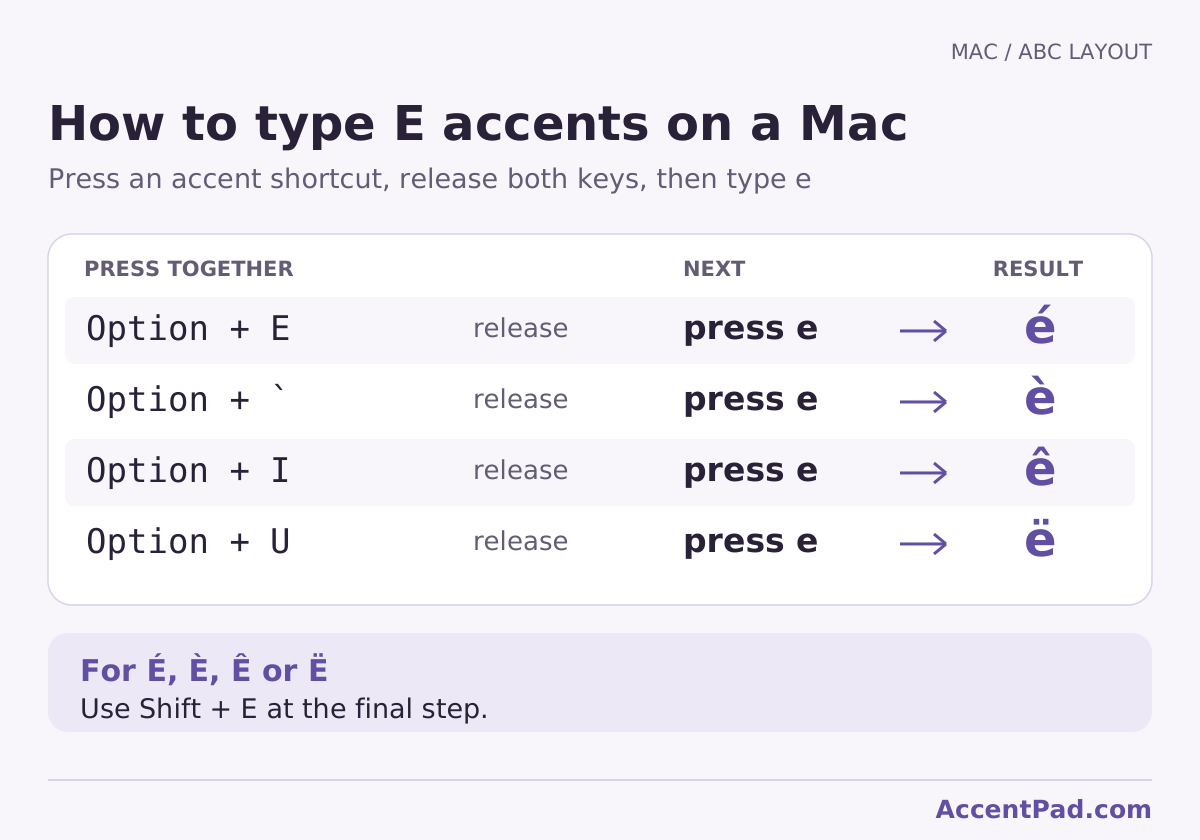
The grave-accent key is the ` key, not the apostrophe '. On a different input source, check Keyboard Viewer for its accent keys. Apple explains the accent menu and dead keys and accent entry in Pages.
Type accented E in Microsoft Word
Word for Windows: built-in accent shortcuts
Word’s accent shortcuts can be useful on a laptop without a numeric keypad. Press the first combination, release it, then type e.
| Letter | First combination | Then type |
|---|---|---|
| é | Ctrl + ' (straight apostrophe) | e |
| è | Ctrl + ` (grave accent) | e |
| ê | Ctrl + Shift + 6 on a U.S. keyboard (the ^ key) | e |
| ë | Ctrl + Shift + ; on a U.S. keyboard (the : key) | e |
For uppercase, use Shift + E at the final step. The key positions for ^ and : vary with the keyboard layout. These sequences refer to Word for Windows; browser editors and other apps may handle them differently. See Microsoft’s Word accent shortcuts.
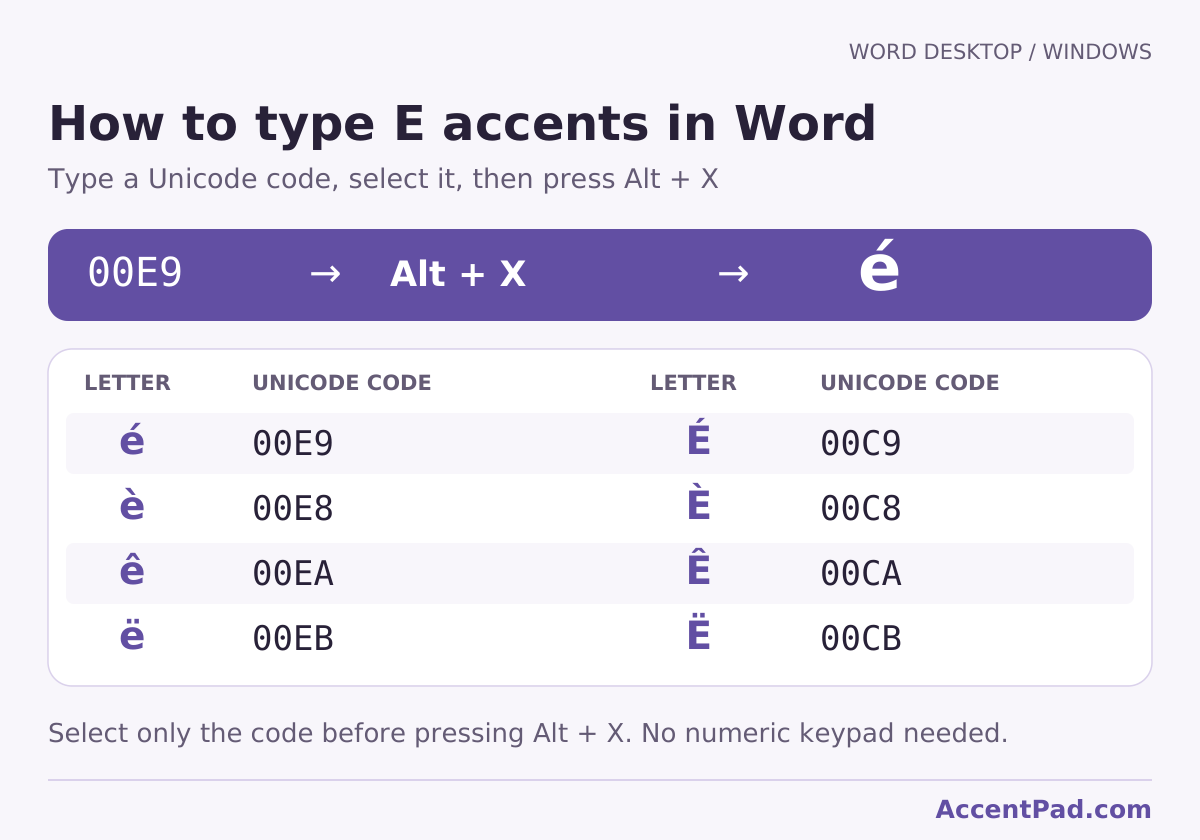
Word for Windows: convert a Unicode code with Alt + X
- Type the four-digit Unicode value from the reference table below, such as 00E9.
- Select just those four characters. This avoids including an adjoining letter or number in the conversion.
- Press Alt + X to change the code into é.
For É, use 00C9. Enter the hexadecimal digits without U+ for this method. Microsoft documents Unicode conversion in Word. This is a Word feature, not a general shortcut for Excel or Google Docs.
Insert accented E through Office symbol menus
For Word on Windows, go to Insert → Symbol → More Symbols. In the dialog, choose a normal text font and, when available, the Latin-1 Supplement subset. Select the accented E and click Insert.
For Excel or PowerPoint on Windows, start with Insert → Symbol. In Excel, select the destination cell first; in PowerPoint, place the cursor inside a text box. Find the letter in a text font, insert it, and close the dialog.
On Word for Mac, the menu can be Insert → Advanced Symbol → Symbols. Mac Office apps and web versions have different interfaces, so use the Mac accent methods or copy and paste when the menu differs. Microsoft provides separate guidance for Office for Mac symbol menus and inserting symbols.
Insert E with an accent in Google Docs
- Open the document on a computer and place the cursor where you need the letter.
- Choose Insert → Symbols → Special characters. Some interface versions show Special characters directly under Insert.
- Enter the Unicode value for the letter, such as 00E9 for é, in the search field, or draw the character.
- Check the result’s accent and case, then click it to insert.
Use 00E8 for è, 00EA for ê, or 00EB for ë. Google documents this in its special-character instructions. On the mobile Docs app, use your phone keyboard or paste the letter. In Google Sheets, paste a letter rather than looking for the same Special characters dialog.
Type accented E on iPhone and iPad
- Tap a text field to open the onscreen keyboard.
- Touch and hold the e key.
- Keep your finger down, slide to the required variant, then release.
- For É, È, Ê, or Ë, enable uppercase with Shift before holding the letter.
The choices depend on the keyboard and language. These steps use the onscreen keyboard; an attached physical keyboard may use different shortcuts. Apple illustrates the hold-and-slide method in its iPhone typing guide.
Type accented E on Android with Gboard
In Gboard, touch and hold e, move to the accented version, and release. Turn on uppercase before holding E if you need a capital.
If a letter is missing, check Gboard’s language settings or add the language you are writing in. Other Android keyboard apps can show different options. Google’s Gboard instructions explain long-press options. Copy and paste remains an alternative when the character is unavailable.
Write a complete sentence with AccentPad
If you need several different accents in the same sentence, the French accent keyboard includes all four forms together.
- Type or paste your text into the editor.
- Place the cursor where the accented E belongs, or select an existing letter to replace it.
- Click é, è, ê, or ë. Turn on Uppercase for a capital.
- Choose Copy text, then paste your finished writing into your document.
Try this short practice line: café · très · fête · Noël. AccentPad helps enter the characters; you still choose the spelling. Copy any text you want to keep before refreshing or leaving the page.
Accented E shortcuts not working?
Windows gives a different character or no character
Check the leading zero, numeric keypad, and Num Lock. The number row cannot replace the keypad for this Alt-code method. Try Character Map or copy and paste if the app handles the code differently.
Mac types a separate accent or repeats E
For Option sequences, release the accent combination before typing the final E. Check the active input source if the result differs. If holding E repeats the letter instead of opening a menu, that app or configuration may not support the accent menu; try an Option sequence or copy the letter.
Word’s shortcut opens a browser command
A browser can intercept a shortcut intended for desktop Word. Use the web app’s available menus or paste the letter. Avoid assuming that Word for Windows shortcuts apply to every writing app.
Your phone changes the spelling afterward
Review the word after autocorrect or a spelling suggestion. Choose the keyboard language that fits your writing, and restore the required spelling if a suggestion replaces it.
You have e followed by an apostrophe
The text e' contains two separate characters; it is not é. Replace it with the intended accented letter. A combining accent is a different Unicode mechanism and can also form a correctly accented letter, so visual appearance alone does not tell you how text is encoded.
Unicode and HTML reference
These are the precomposed characters used by the copy buttons. The code points and names appear in Unicode’s Latin-1 Supplement chart (PDF).
| Letter | Accent | Unicode | HTML reference |
|---|---|---|---|
| é | acute | U+00E9 | é |
| è | grave | U+00E8 | è |
| ê | circumflex | U+00EA | ê |
| ë | diaeresis | U+00EB | ë |
| É | acute | U+00C9 | É |
| È | grave | U+00C8 | È |
| Ê | circumflex | U+00CA | Ê |
| Ë | diaeresis | U+00CB | Ë |
A Unicode value identifies the character. It is not the same as a Windows Alt code: for é, the Unicode value is U+00E9, while the Windows code used above is Alt + 0233. HTML references are for HTML source, rather than ordinary text fields.
Frequently asked questions
What is the fastest way to type é without a numeric keypad?
Copy é from the buttons near the top. In Word for Windows, another option is Ctrl + apostrophe, release, then e. On a Mac with the ABC layout, use Option + E, release, then E.
How do I type a capital accented E?
Copy É È Ê Ë directly, use the uppercase Windows codes in the table, or hold Shift for the final E in a Mac or Word accent sequence. On a phone, turn on uppercase before holding E.
Is ë the same letter as é?
No. ë has a diaeresis, or two dots; é has an acute accent. Choose the character required by the name or word you are writing.
Does this cover every accented E?
It covers four common forms and their capitals. Other languages use additional forms, such as ē, ě, and ę. Their characters and input methods differ; the Windows code for é should not be reused for them.
Related accent keyboards
Use the French keyboard for é, è, ê, and ë together; the Spanish keyboard for é alongside ñ and other Spanish characters; or the Italian keyboard for è and é alongside Italian accented vowels.
Sources and documentation
AI assistance was used for drafting. Instructions and character values were checked against the linked Microsoft, Apple, Google, and Unicode references. Keyboard layouts, app editions, and menu labels can change. Report a correction if the steps differ on your setup.